
How to update body worn camera and helmet camera firmware?
Why is it necessary to update the firmware for body worn cameras and helmet cameras?
With continuous firmware updates, body worn camera and helmet cameras can ensure stable operation, bug fixes, new features, and optimizations in smoothness and security.
Firmware update steps:
1. Open “update FW Tool” folder
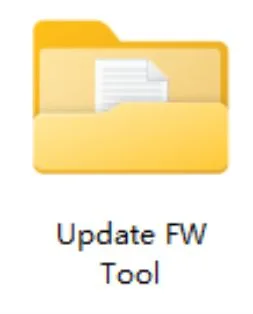
2. Install “driver.msi ”

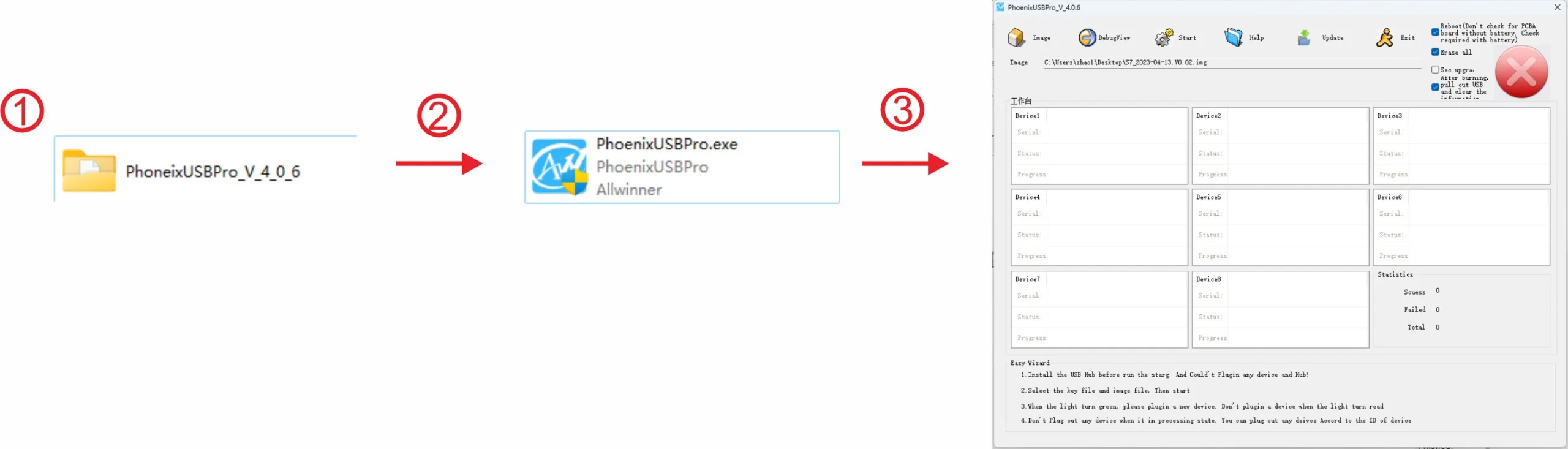
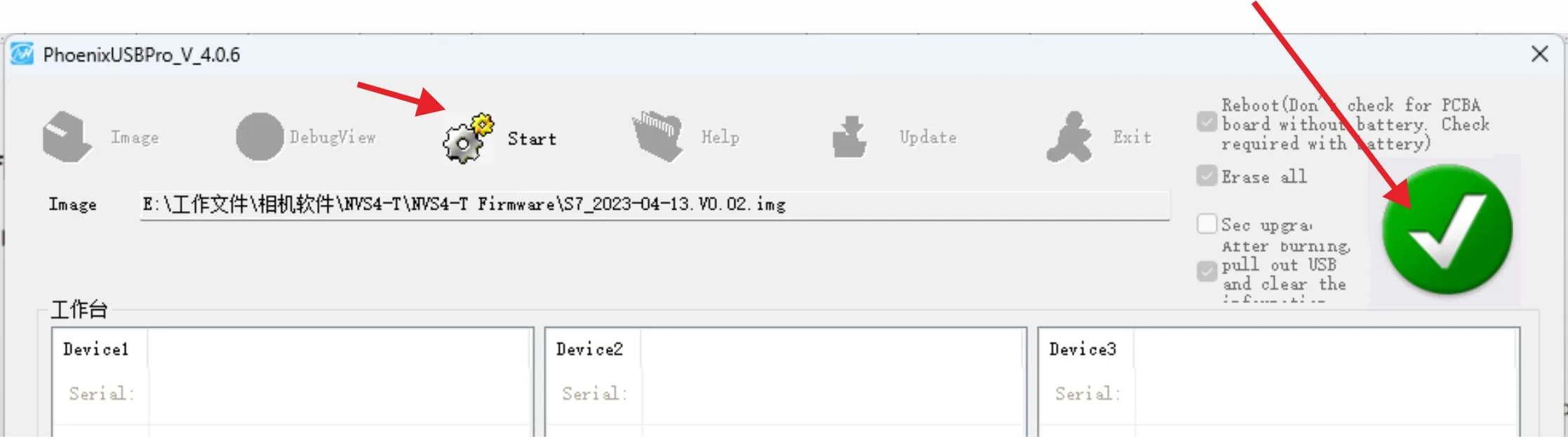
3. Open “ "PhoenixUSBPro_V_4_0_6" folder, and then find to open "PhoenixUSBPro.exe" as picture
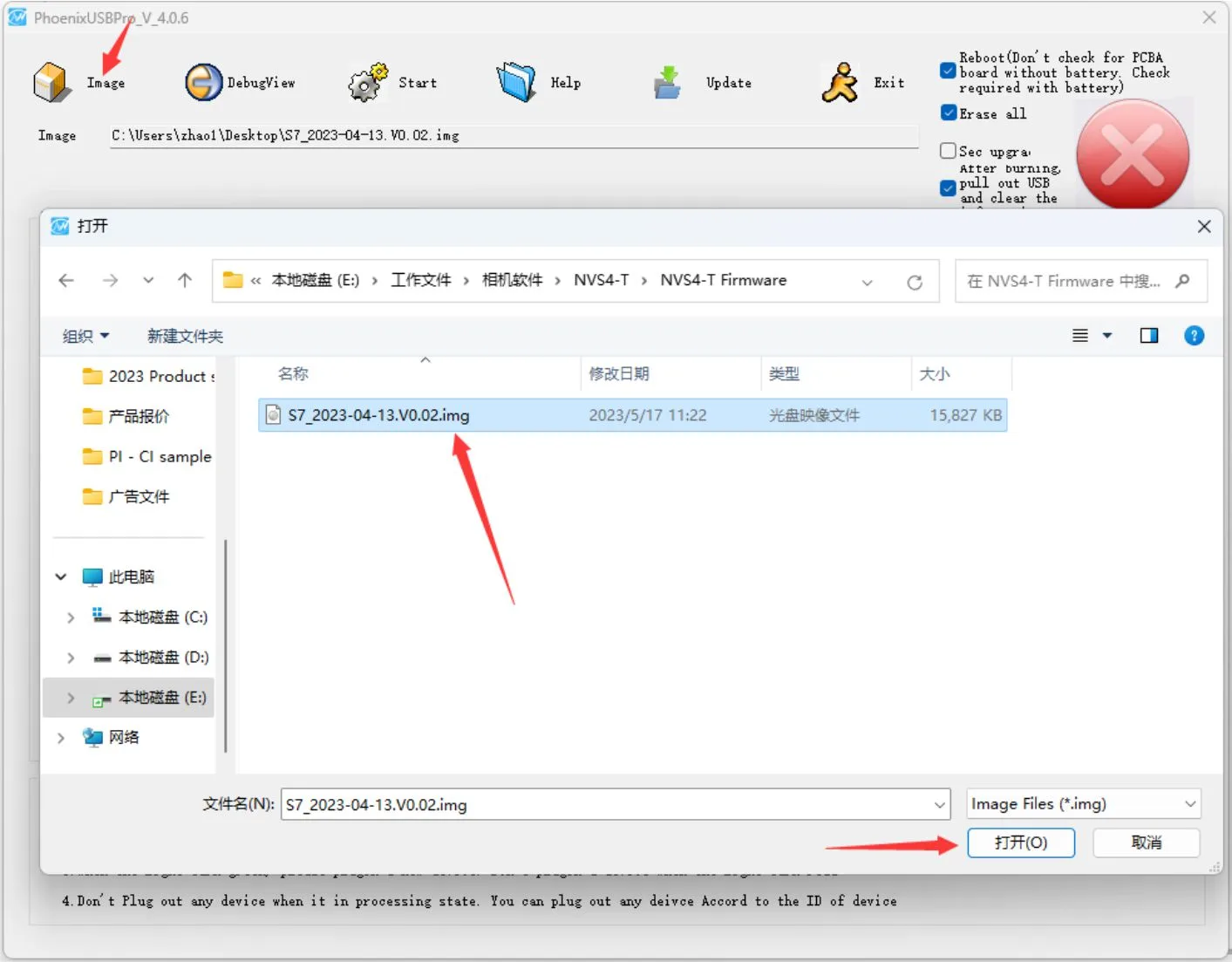
4. Choose FW image from your computer: click “Image” icon to choose New Firmware.
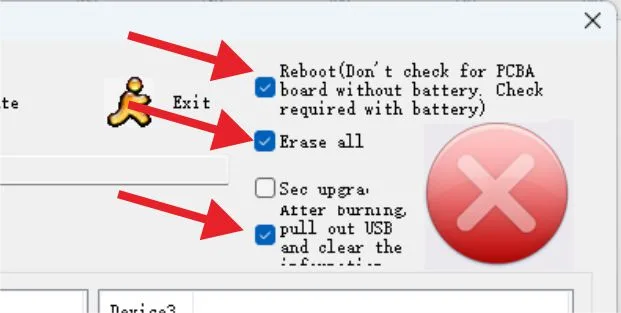
5. Choose "Reboot..." , Erase all and "Pull out USB...” option on the right
6. Click "Start", then you will see a green light on the right.
7. To connect the camera to PC by USB cable ( If the firmware update fails, press and hold the power button for 15 seconds, then press the update button again to connect the camera via USB cable. )
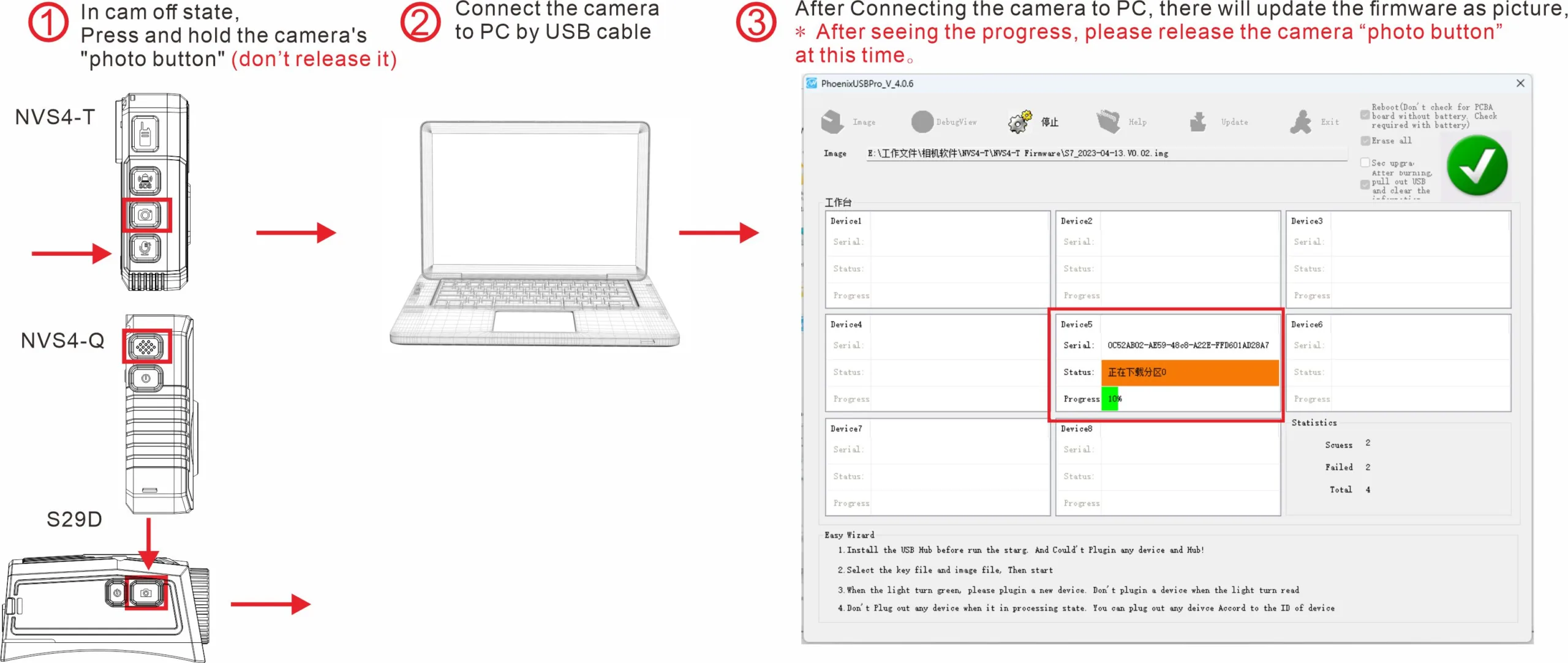
8.After the firmware update is completed, the camera will restart automatically. At this time, it means that the firmware update is completed.
9. Click “stop ” button and close “PhoenixUSBPro.exe”. and then disconnect the camera from PC to use the camera

Please contact to us for updating FW Tool and latest firmware ( www.novestom.com ).