
How to quickly configure the body worn camera?
Overview:
This guide will show you how to turn on and set up Wi-Fi and 4G to view the body worn camera or military helmet camera live stream.
How to set body worn camera or tactical helmet camera WiFi function:
1, To connect the body worn camera to PC by USB cable.
2, Please open the "cam manager software" and enter password: 000000 then click "connect device" button, At this point, the camera will be connected to the software and all available settings will be displayed.
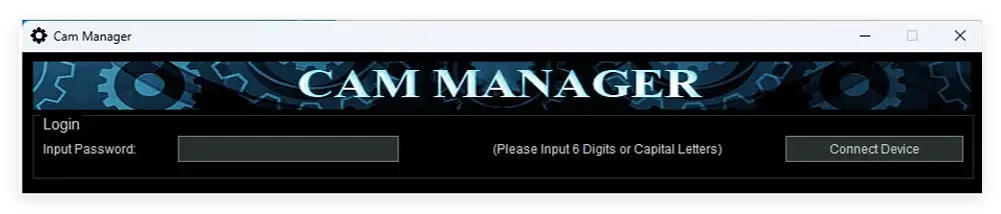
3, WiFi settings:

3.1, Set WiFi to "On", please click " Apply " button.
3.2, Set server IP to your server IP, please click " Apply " button.
3.3, set your WiFi SSID and PW. please click " Apply " button.
4, After setting is done, please disconnect the camera from PC, and restart the body worn camera or military helmet camera to wait for WiFi Signal, there will be a WiFi icon on the screen.
5, Please install the CMSV6 PC client to your PC, and then log in CMSV6 with your username, password and server IP.
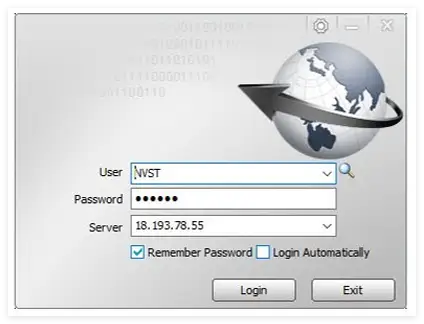
How to set 4G LTE body worn camera or tactical helmet camera function:
1, To connect the body worn camera to PC by USB cable.
2, Please open the "cam manager software" and enter password: 000000 then click "connect device" button, At this point, the camera will be connected to the software and all available settings will be displayed.
3, 4G settings:

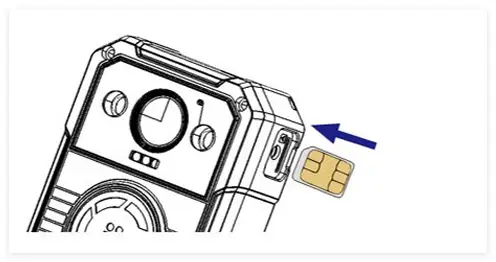
To set 4G to "On", please click " Apply " button. and then insert 4G Nano SIM Card to the camera, and restart the body camera, the camera will get a 4G signal. ( if the camera can' get 4G signal or connection, please set APN, and click " Apply " button. )
4, Please install the CMSV6 PC client to your PC, and then log in CMSV6 with your username, password and server IP.
If any questions, please contact us to get more about setting.